
"claude: command not found": How Do I Fix It?
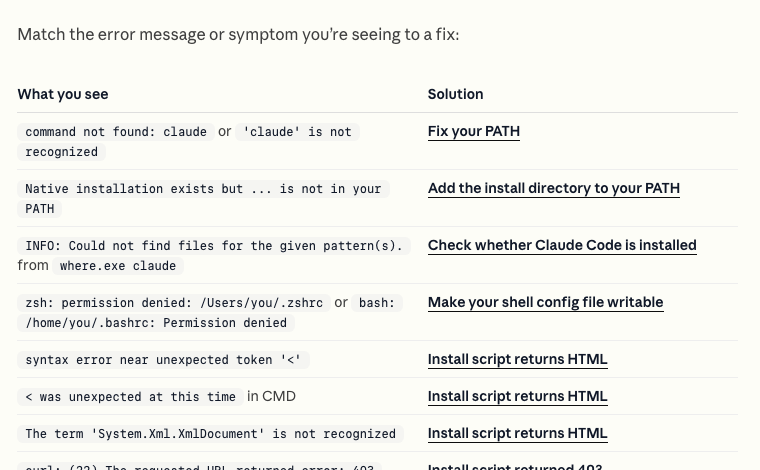
The message means your terminal cannot find Claude Code, because the folder it was installed into is not on your PATH, the list of folders your terminal searches when you type a command. The fix is to add that folder (~/.local/bin on a Mac, %USERPROFILE%\.local\bin on Windows) to your PATH and open a new terminal window.
Nothing is broken, and you do not need to reinstall. Start with the cause, then jump to your system.
Why You See This Error
Anthropic's installation troubleshooting page explains it. The installer puts the claude program at ~/.local/bin/claude on a Mac or Linux, and at %USERPROFILE%\.local\bin\claude.exe on Windows. When that folder is missing from your PATH, your terminal reports an error. When the installer notices the problem, it prints a note under 'Setup notes' with the fix, but it does not change your PATH itself. Scroll up in the install window and you may find that note.
The exact message depends on your system
| Where you typed claude | What you see |
|---|---|
| Mac (Terminal) | zsh: command not found: claude |
| Linux | bash: claude: command not found |
| Windows CMD | 'claude' is not recognized as an internal or external command |
| Windows PowerShell | claude : The term 'claude' is not recognized as the name of a cmdlet |
Fix It on a Mac
First, check that Claude Code was installed at all. Run this and press Enter:
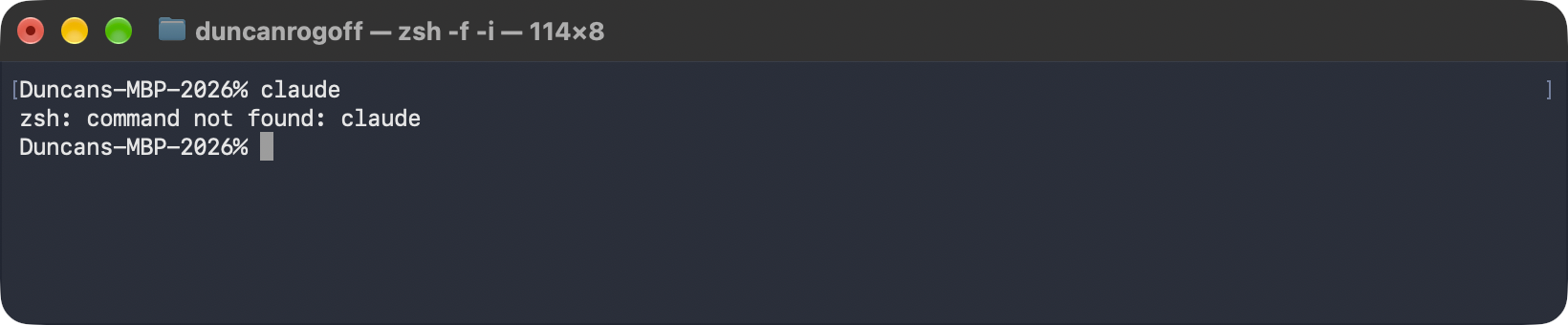
- ls -la ~/.local/bin/claude
If it says 'No such file or directory,' Claude Code is not installed in the standard place, so run the install line from How do I install Claude Code on Mac and Windows? first. If you see a line describing the file, the program is there and only the PATH needs fixing.
Second, check whether the folder is already on your PATH:
- echo $PATH | tr ':' '\n' | grep -Fx "$HOME/.local/bin"
If it prints something ending in /.local/bin, the folder is already there, so skip to 'Still Not Working' below. If it prints nothing, add the folder. Macs use the zsh terminal by default, so type these two lines, pressing Enter after each:
- echo 'export PATH="$HOME/.local/bin:$PATH"' >> ~/.zshrc
- source ~/.zshrc
The first line saves the setting for every terminal window you open from now on, and it prints nothing when it works. The second applies the setting to the window you are in. Then run claude --version.
If you changed your Mac to use Bash instead of zsh, put the line in ~/.bash_profile, not ~/.bashrc, because Terminal on macOS reads ~/.bash_profile when it starts Bash:
- echo 'export PATH="$HOME/.local/bin:$PATH"' >> ~/.bash_profile
- source ~/.bash_profile
Fix It on Windows
Open PowerShell (press Win + X and choose Windows PowerShell). Check that the program exists:
- Test-Path "$env:USERPROFILE\.local\bin\claude.exe"
False means Claude Code is not installed in the standard place, so run the install line first. True means it is there. Now check whether the folder is on your PATH:
- $env:PATH -split ';' | Select-String '\.local\\bin'
If that prints a path ending in .local\bin, the folder is already on your PATH, so skip to 'Still Not Working.' If it prints nothing, add the folder to your user PATH with these two commands:
- $currentPath = [Environment]::GetEnvironmentVariable('PATH', 'User')
- [Environment]::SetEnvironmentVariable('PATH', "$currentPath;$env:USERPROFILE\.local\bin", 'User')
Close PowerShell and open a new window, because the change only reaches new windows. Then run claude --version.
If you use CMD instead of PowerShell, check for the file with dir "%USERPROFILE%\.local\bin\claude.exe". To add the folder, open System Settings, go to Environment Variables, and add %USERPROFILE%\.local\bin to the PATH variable under your user (the top list, not the system list). Restart your terminal and run claude --version.
Still Not Working? Check These
- The terminal is older than the change. Open a brand new window. If you are using the terminal inside VS Code or another editor, quit and reopen the editor.
- The PATH line did not get saved (Mac). Run grep -n '.local/bin' ~/.zshrc. If it prints a line, it saved. If it prints nothing, run the two commands again.
- The line went to the wrong file (Mac). Run echo $0 to see which terminal type you are using, then use the matching file: ~/.zshrc for zsh, ~/.bash_profile for Bash on a Mac.
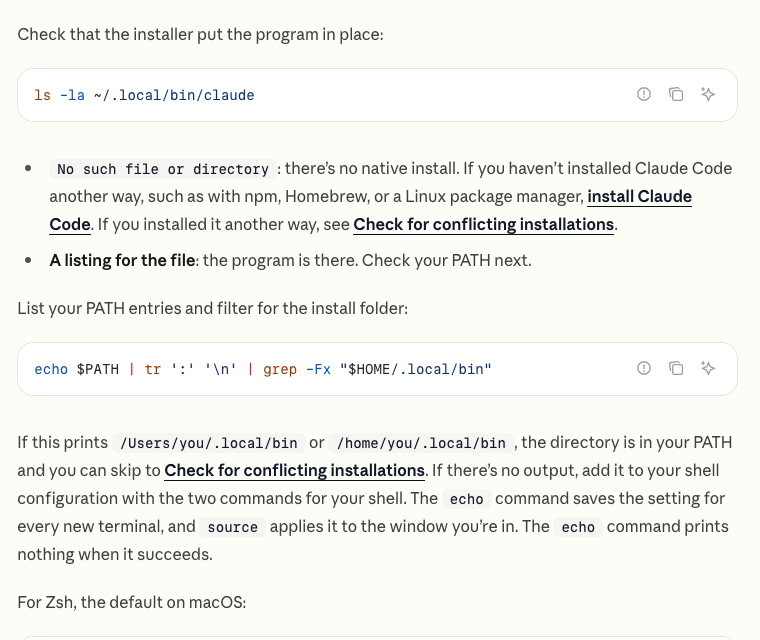
- The echo command said 'permission denied' (Mac). Run ls -l ~/.zshrc and look at the owner. If another user such as root owns the file, take it back with sudo chown $(whoami) ~/.zshrc (this asks for your administrator password). If you own it, make it writable with chmod u+w ~/.zshrc. Then run the two PATH commands again.
- You only installed the VS Code extension. The extension keeps a private copy of Claude Code for its own panel and does not put claude on your PATH, so typing claude in a terminal fails until you run the install line.
- Two installs are fighting. On a Mac, run which -a claude. On Windows, run where.exe claude. If you see Claude Code installed more than one way (for example npm and the native install), Anthropic recommends keeping only the native one at ~/.local/bin/claude.
- Windows: it broke right after an update. Claude Code swaps its program file during an update, and if that step fails the file can go missing. In PowerShell, run Get-ChildItem "$env:USERPROFILE\.local\bin\claude.exe.old.*" | Sort-Object Name | Select-Object -Last 1 | Rename-Item -NewName claude.exe. If no backup file exists, run irm https://claude.ai/install.ps1 | iex to reinstall.
How to Confirm It Worked
Open a new terminal window and run:
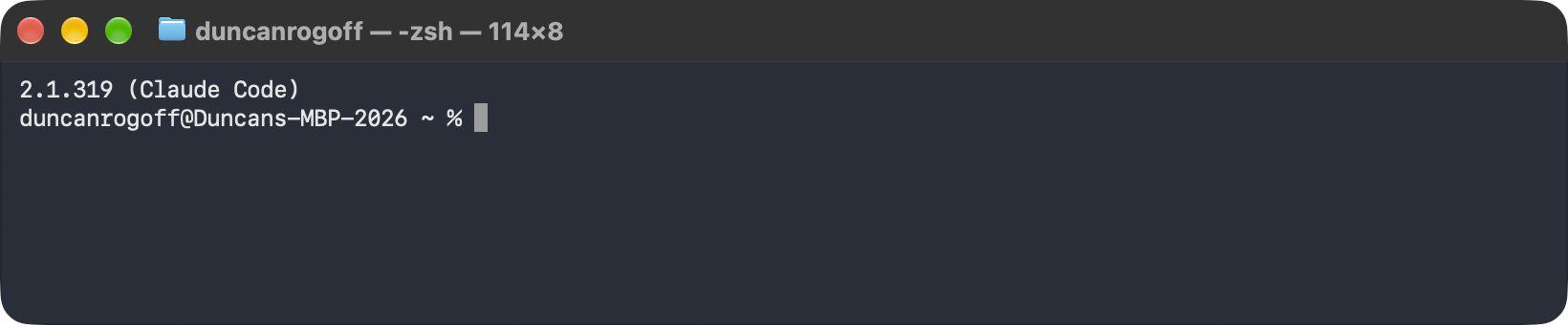
- claude --version
A working install prints a version number followed by (Claude Code). Then type claude and press Enter. The welcome screen appears and you are in. For a fuller report, run claude doctor, which prints read-only checks on your install and settings without starting a session.
Where to Go Next
If the install itself is what failed, the full walkthrough is How do I install Claude Code on Mac and Windows?. If you are not sure whether to work in the terminal at all, Should I use Claude Code in the terminal, VS Code, or the desktop app? shows the no-terminal option. Claude Code Club is $9/month if you want help getting set up.
Short, practical drops on skills, MCP, agents, prompts, and more. No spam, unsubscribe anytime.
Frequently asked questions
What does 'claude: command not found' mean?
Your terminal searched every folder on its PATH for a program named claude and did not find one. Claude Code is usually installed, but into ~/.local/bin on a Mac or %USERPROFILE%\.local\bin on Windows, and that folder is not on your PATH yet.
Do I need to reinstall Claude Code to fix it?
Usually not. If ls -la ~/.local/bin/claude on a Mac (or Test-Path "$env:USERPROFILE\.local\bin\claude.exe" on Windows) shows the program is there, adding the folder to your PATH is enough. Reinstall only if the file is missing.
Why does claude work in one terminal window but not another?
A window keeps the PATH it had when it opened, and a terminal inside an editor such as VS Code gets its PATH from the editor. Open a new window, or quit and reopen the editor, after you change your PATH.
I installed the VS Code extension. Why is claude not found in my terminal?
The extension bundles a private copy of Claude Code for its chat panel and does not add claude to your PATH. Run the standalone install line once, then claude works in any terminal.
Last reviewed by Duncan Rogoff on November 9, 2026