
Should I Use Claude Code in the Terminal, VS Code, or the Desktop App?
If you have never used a terminal (the window where you type commands), start with the Claude desktop app, because it gives you Claude Code with buttons instead of typed commands. Choose the terminal version if you want every feature or plan to automate things, and the VS Code extension if you already work in VS Code.
This is not a one-way door. Anthropic's platforms page says Claude Code runs the same underlying engine everywhere, and that configuration, project memory and connected tools are shared across the versions that run on your computer.
The Short Version
Where to run Claude Code on your computer
| Terminal | Desktop app | VS Code extension | |
|---|---|---|---|
| Best for | Full features, automation, remote computers | Visual review, several sessions at once, no terminal | Working inside VS Code |
| Looks like | A text window | A normal app with a Code tab | A chat panel beside your files |
| Setup | One pasted line | Download and sign in | Install from the Extensions tab |
| Needs | A paid Claude plan or Console account | A paid Claude plan | VS Code 1.94.0 or newer, plus a paid plan or Console account |
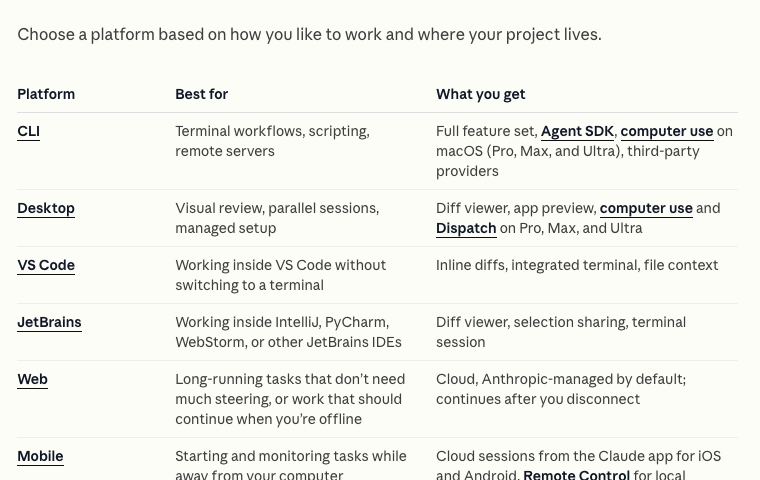
Every version needs a paid Claude account (Pro, Max, Ultra, Team or Enterprise), except that VS Code and the terminal also work with a Claude Console account, the pay-as-you-go option. The free Claude plan does not include Claude Code.
The Terminal Version
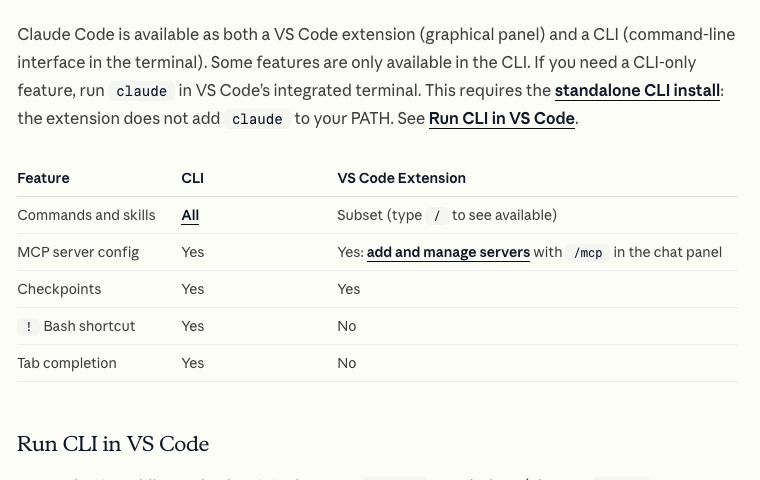
The terminal version is the original. You install it with one pasted line and start it by typing claude. Anthropic's platforms page calls it the full feature set and says scripting and the Agent SDK (Anthropic's toolkit for building your own agents) are available only here.

It suits you if you like keyboard-driven work, want to run Claude Code on another computer such as a server, or plan to automate tasks. It is the hardest of the three to start with, because you cannot click anything. The full install steps are in How do I install Claude Code on Mac and Windows?, and Anthropic wrote a guide for people who have never opened a terminal.
The Desktop App
The Claude desktop app has Claude Code in a tab called Code. You download the app for macOS or Windows (Linux is in beta), sign in, click Code, and choose a folder. Anthropic's quickstart says you do not need to install Node.js or the terminal version to use the Code tab.
What you get beyond buttons, from the desktop docs:
- A diff view: after Claude changes your files, you review each change file by file and leave comments on specific lines before anything goes further.
- Several sessions side by side. Each conversation is its own session with its own folder, and the sidebar lists them so you can run more than one at once.
- An app preview. Claude can start your project and show it in a Browser pane inside the app, and it can check its own work there.
- A built-in terminal pane, so you can run a command next to your chat without switching apps.
- Connectors, a point-and-click way to link tools such as GitHub, Slack and Linear.
- Places to run: on your computer, in the cloud, over SSH to another computer, or inside WSL on Windows.
The limits, per the docs: scripting and automation live in the terminal version, and one permission mode (dontAsk) exists only there. If those words mean nothing to you yet, they are not a reason to skip the desktop app.
The VS Code Extension
VS Code is a free code editor. If you already use it, Anthropic's extension puts Claude Code in a chat panel inside it. Install it from the Extensions view (Cmd + Shift + X on a Mac, Ctrl + Shift + X on Windows), search for Claude Code, and click Install. You need VS Code 1.94.0 or newer. The same extension also installs in Cursor.
The docs list what you get: Claude's plans shown for you to review before accepting, edits applied as they are made (if you choose), the ability to @-mention a file or a selected range of lines, conversation history, and several conversations in tabs.
Can I Use More Than One?
Yes, and many people do. The desktop docs say you can run the terminal version and the desktop app at the same time, even on the same project, and that they share settings and your CLAUDE.md files (the notes Claude reads at the start of each session). You can move work between them:
- From the terminal to the desktop app: type /desktop in the terminal, and the session opens in the app.
- Sessions you started in the terminal also show up in the app: close the session in the terminal, open the desktop app, and type /resume in its prompt box.
- From VS Code to the terminal: the extension and the terminal version share conversation history, so claude --resume lists your extension conversations too.
Which One Should You Pick?
My recommendation: if you are new, start with the desktop app and turn the permission mode to the one that asks before it changes files. You can see what Claude is doing, you review changes visually, and you skip the part that scares most beginners. Move to the terminal when you want automation or a feature that only lives there.
- Never opened a terminal: desktop app.
- Already live in VS Code: the extension, plus the terminal version if you want the full command list.
- Want scripts, scheduled runs or a remote computer: terminal.
- Not sure: desktop app. You lose nothing by switching later.
Common Problems
- The desktop app asks you to upgrade when you click Code: you need a paid Claude plan. The free plan does not include Claude Code.
- The VS Code extension does not show up after installing: restart VS Code, or open the Command Palette and run Developer: Reload Window.
- claude is not found in VS Code's terminal: the extension does not add it. Run the standalone install line, then open a new terminal.
- You are on Windows and not sure which command to paste: the install guide linked above has the PowerShell and CMD lines.
Where to Go Next
Once one of the three is running, the next upgrade is connecting it to your other tools. Read Which MCP servers are worth installing, and how do I set them up?. If you want your first builds laid out step by step, Claude Code Club is $9/month.
Short, practical drops on skills, MCP, agents, prompts, and more. No spam, unsubscribe anytime.
Frequently asked questions
Is the Claude Code desktop app the same as Claude Code in the terminal?
They run the same underlying engine, according to Anthropic's docs, and they share settings and project notes. The desktop app adds a visual interface with diff review, an app preview and side-by-side sessions. The terminal version has the full feature set, including scripting.
Do I need to know how to code to use the desktop app?
No. You describe what you want in plain English and review the changes Claude proposes. The app does not require installing Node.js or the terminal version.
Do I need VS Code to use Claude Code?
No. VS Code is optional. Claude Code works in the desktop app and in any terminal without it. The extension is for people who already use VS Code.
Can I switch between the terminal and the desktop app?
Yes. Type /desktop in the terminal to open the session in the desktop app, or run claude --resume in the terminal to continue a conversation you started elsewhere.
Last reviewed by Duncan Rogoff on November 9, 2026