
How Do I Install Claude Code on Mac and Windows?
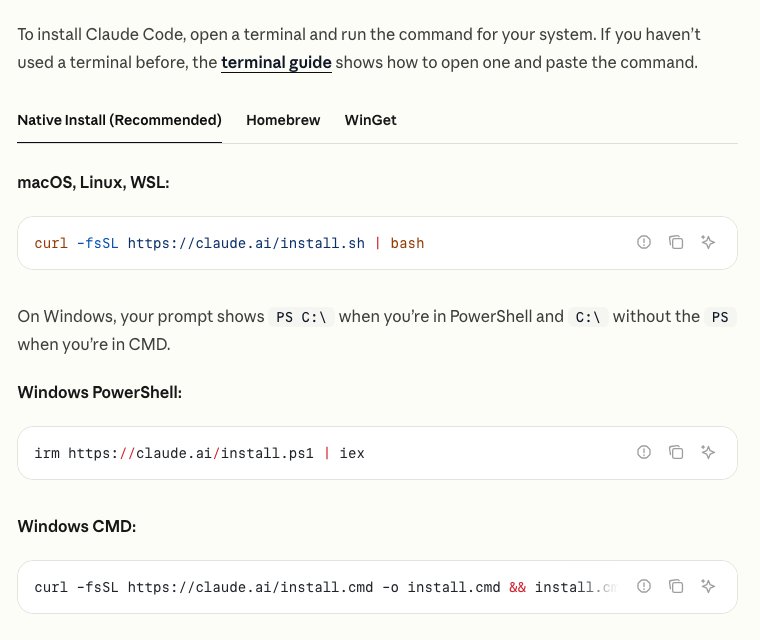
On a Mac, open the Terminal app, paste curl -fsSL https://claude.ai/install.sh | bash, and press Enter. On Windows, open PowerShell, paste irm https://claude.ai/install.ps1 | iex, and press Enter. When it finishes, type claude and sign in with a paid Claude account.
A terminal is just a window where you type instructions instead of clicking, and Anthropic's setup page says the installer shows no progress while it downloads, so the only skill you need is waiting. I'm not a developer, and I work in Claude Code every day anyway. If a terminal is a dealbreaker for you, there is a version with no terminal at all (the desktop app), covered below.
What You Need Before You Start
Anthropic's setup page lists the requirements. Check these four before you install:
- A computer running macOS 13.0 or newer, Windows 10 (version 1809 or later), or a supported Linux such as Ubuntu 20.04 or newer.
- At least 4 GB of memory (RAM) and an internet connection.
- A country Anthropic supports. If the sign-in page says 'App unavailable in region,' that is the reason.
- A paid Claude account: Pro, Max, Ultra, Team, Enterprise, or a Claude Console account (the pay-as-you-go option). The free Claude plan does not include Claude Code.
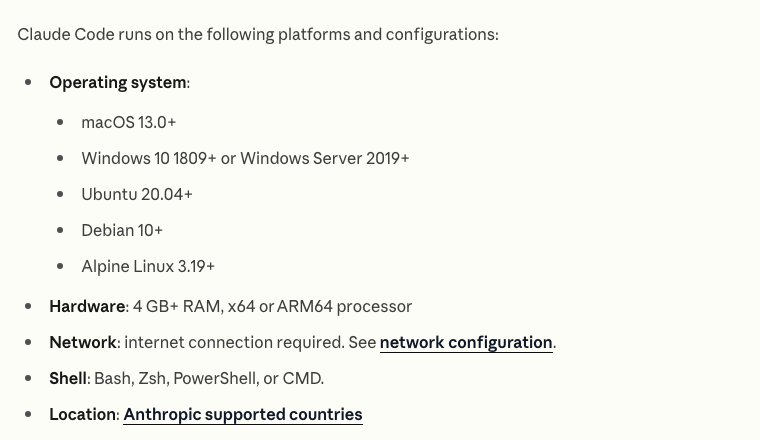
You do not need to install Node.js or any other program first. Node.js is not on the setup page's requirements list for this install. Git is optional too, and you do not need administrator rights on Windows.
Install Claude Code on a Mac
- Press Cmd + Space, type Terminal, and press Enter. A window opens with a blinking cursor.
- Copy the line below, paste it into the window with Cmd + V, and press Enter: curl -fsSL https://claude.ai/install.sh | bash
- Wait without closing the window. Nothing seems to happen while it downloads, then you see 'Claude Code successfully installed!'
- Close that window and open a new one. This matters: a window that was already open does not notice what the installer changed.
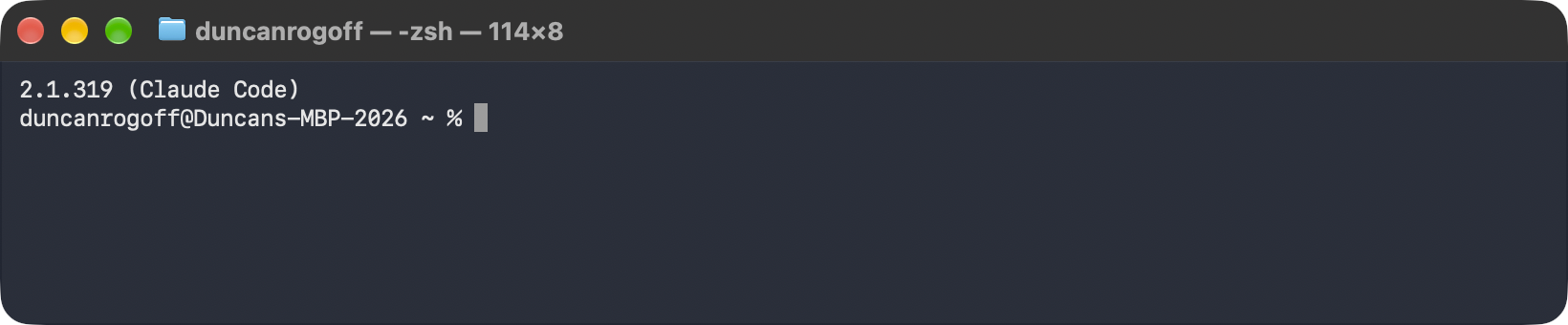
- In the new window, type claude --version and press Enter. You should see a version number followed by (Claude Code).
Now start it. Make a folder for your first project, move into it, and launch Claude Code. Type these one at a time and press Enter after each:
- mkdir my-first-project
- cd my-first-project
- claude
A browser window opens so you can sign in with your Claude account. After that, the Claude Code welcome screen appears with a text box at the bottom, and you can start typing what you want in plain English.

Install Claude Code on Windows
Windows has two typing windows that look alike: PowerShell and CMD. The commands differ, so check which one you have. PowerShell shows PS before your folder, like PS C:\Users\YourName>. CMD does not show the PS.
- Press Win + X and choose Windows PowerShell (or Terminal). A window opens with a blinking cursor.
- Make sure the line starts with PS. Then copy this line, paste it with Ctrl + V (or right-click), and press Enter: irm https://claude.ai/install.ps1 | iex
- Wait for the installer to finish. Like the Mac version, it shows no progress while it downloads.
- Open a new PowerShell window, type claude --version, and press Enter to confirm a version number appears.
- Type claude and press Enter to sign in through your browser.
If you are in CMD instead, use this line: curl -fsSL https://claude.ai/install.cmd -o install.cmd && install.cmd && del install.cmd
Git for Windows is optional. Without it, Claude Code runs its commands through PowerShell. With it, Claude Code uses Git Bash for that job. Either way works, so skip it unless you already have it. If you prefer Linux tools on Windows, Anthropic also supports installing inside WSL (Windows Subsystem for Linux): open your WSL window and run the Mac and Linux line there.
The No-Terminal Way: The Desktop App
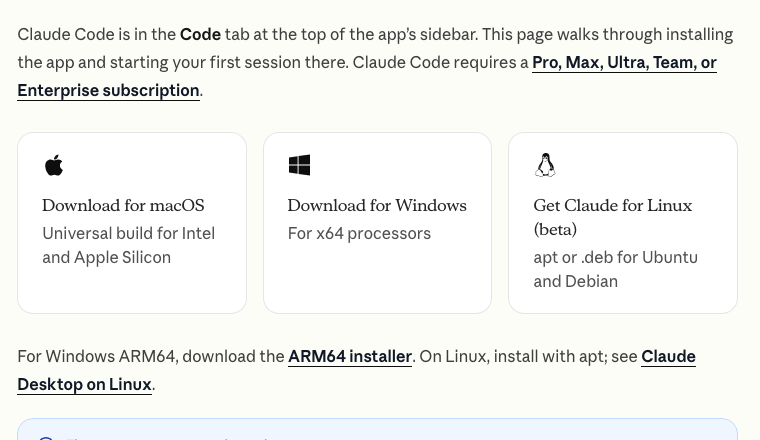
The Claude desktop app has Claude Code built into a tab called Code, with buttons instead of commands. Anthropic's docs say you do not need Node.js or the terminal version to use that tab. Download the macOS build (one installer for Intel and Apple Silicon Macs) or the Windows build (x64, with a separate ARM64 installer), run it, open Claude, and sign in.
Not sure which way is better for you? Should I use Claude Code in the terminal, VS Code, or the desktop app? compares them.
Other Ways to Install: Homebrew and WinGet
Two package managers (programs that install other programs) also work. On a Mac with Homebrew, run brew install --cask claude-code. On Windows, run winget install Anthropic.ClaudeCode. The catch from Anthropic's docs: these two do not update themselves. Update with brew upgrade claude-code or winget upgrade Anthropic.ClaudeCode. If you can, use the native line above, because it keeps itself current.
Check That It Worked
Open a fresh terminal window and run claude --version. A working install prints a version number followed by (Claude Code). For a fuller check, run claude doctor, which prints read-only diagnostics about your install and settings without starting a session, including any warning and a suggested fix. If claude --version prints an error instead of a number, jump to the next section.
Common Problems
- zsh: command not found: claude on a Mac, or 'claude' is not recognized on Windows: the installer put Claude Code in a folder your terminal does not search yet. The full fix for both systems is in "claude: command not found": how do I fix it?.
- irm is not recognized: you are in CMD, not PowerShell. Open PowerShell with Win + X, or use the CMD line above.
- The token '&&' is not a valid statement separator: the opposite mistake. You are in PowerShell but pasted the CMD line. Use irm https://claude.ai/install.ps1 | iex.
- syntax error near unexpected token '<' (or a 403 error): the download returned a web page instead of the installer. Run the line again. If it keeps happening, install with Homebrew or WinGet instead.
- 'The process cannot access the file' during a Windows install: an earlier attempt or your antivirus is holding the download folder. Close other PowerShell windows, wait a minute, run Remove-Item -Recurse -Force "$env:USERPROFILE\.claude\downloads", then run the install line again.
- 'App unavailable in region': Claude Code is not available in your country. Anthropic keeps a supported countries list on its site.
- The desktop app asks you to upgrade when you click Code: the free Claude plan does not include Claude Code, so you need a paid plan.
Where to Go Next
Once claude --version prints a number, you are ready for your first build. If you are still deciding which plan to pay for, read How much does Claude Code cost, and which plan do I need?. And if you would like your first builds laid out in order, Claude Code Club is $9/month.
Short, practical drops on skills, MCP, agents, prompts, and more. No spam, unsubscribe anytime.
Frequently asked questions
What is the command to install Claude Code?
On macOS, Linux and WSL, run curl -fsSL https://claude.ai/install.sh | bash. On Windows PowerShell, run irm https://claude.ai/install.ps1 | iex. On Windows CMD, run curl -fsSL https://claude.ai/install.cmd -o install.cmd && install.cmd && del install.cmd. Then type claude to start and sign in.
Do I need Node.js to install Claude Code?
No. Node.js is not on the requirements list in Anthropic's setup page for the native install, and the desktop app needs nothing extra installed. Git is optional as well.
Is Claude Code free to install?
Installing the program costs nothing, but using it requires a paid Claude plan (Pro, Max, Ultra, Team or Enterprise) or a Claude Console account. The free Claude plan does not include Claude Code.
How do I update Claude Code?
The native install updates itself in the background. If you installed with Homebrew or WinGet, update by hand with brew upgrade claude-code or winget upgrade Anthropic.ClaudeCode. You can also run claude update to apply an update right away.
Do I need administrator rights on Windows?
No. Anthropic's setup page says you do not need to run the installer as Administrator.
Last reviewed by Duncan Rogoff on November 9, 2026